
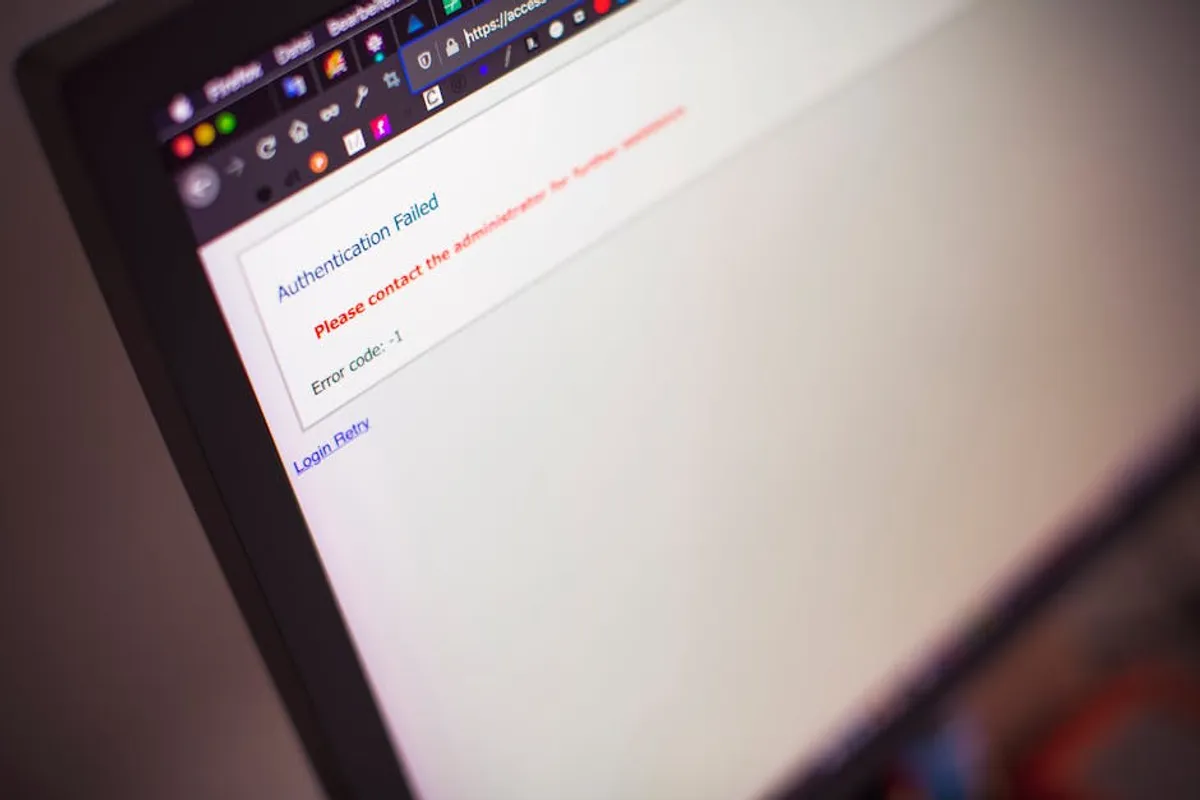
Accessing your router's administrative interface is a fundamental step for managing your home or small business network. This interface allows you to configure essential settings such as Wi-Fi passwords, network security protocols, parental controls, and port forwarding rules. For a significant number of users, particularly those with Xfinity/Comcast equipment or certain D-Link and Netgear models, the default gateway to this control panel is the IP address 10.0.0.1. This guide outlines the precise steps to log into your router using 10.0.0.1, ensuring you can efficiently manage your network from the ground up.
Understanding 10.0.0.1 as a Router IP Address
10.0.0.1 is a private IP address commonly designated as a default gateway for routers. Unlike public IP addresses that identify your network to the internet, private IP addresses are used for communication within your local area network (LAN). This specific address is part of the 10.0.0.0/8 private IP address range, which is often used by larger organizations or internet service providers (ISPs) for their customer equipment. Its use by Xfinity/Comcast is particularly widespread, making it a familiar address for many residential internet users.
Essential Preparation Before Logging In
Before attempting to log into your router's interface, a few preparatory steps ensure a smoother process and help mitigate common issues. These steps focus on verifying your connection and locating necessary credentials.
Verify Network Connection
Your device must be connected to the router's network to access its administrative interface. This connection can be either wired or wireless.
- Wired Connection: Connect your computer directly to one of the LAN ports on the back of your router using an Ethernet cable. This method is generally more stable and less prone to interference.
- Wireless Connection: Ensure your device (laptop, smartphone, tablet) is connected to your router's Wi-Fi network. You must be connected to the network you intend to manage.
Locate Default Login Credentials
Routers are shipped with default usernames and passwords. These are crucial for initial access.
- Router Sticker: The most common location for default credentials is a sticker on the bottom or side of the router itself. Look for "Username," "Password," "Admin Password," or similar labels.
- Router Manual: If no sticker is present, consult the router's user manual or the manufacturer's website.
- Common Defaults: Many routers use generic defaults like "admin/admin," "admin/password," or "admin" with a blank password. However, for 10.0.0.1, particularly with Xfinity/Comcast, specific default credentials are often provided at installation.
Pro Tip: If you've previously changed your router's login credentials and forgotten them, you may need to perform a factory reset. This will revert all router settings, including the login, to their original defaults. Locate the small "Reset" button (often recessed) on your router, usually requiring a paperclip to press and hold for 10-30 seconds.
Step-by-Step Login Process for 10.0.0.1
Once your device is connected and you have your credentials, logging in is a straightforward process.
Step 1: Open a Web Browser
Launch any standard web browser on your connected device. Google Chrome, Mozilla Firefox, Microsoft Edge, or Safari are all suitable.
Step 2: Enter the IP Address
In the address bar (where you usually type website names like google.com), type 10.0.0.1 and press Enter. Do not include "www." or "http://" before the IP address; the browser will typically add it automatically.
Step 3: Enter Login Credentials
A login prompt will appear, requesting a username and password. Enter the default credentials you located in the preparation steps. If successful, you will be redirected to the router's administrative dashboard.
Troubleshooting Common Login Issues
If you encounter difficulties, consider these common problems and their solutions:
- "This site can't be reached" or "Connection timed out":
- Double-check that you typed
10.0.0.1correctly in the address bar. - Ensure your device is physically connected to the router's network.
- Verify that 10.0.0.1 is indeed your router's IP address. You can confirm this by opening Command Prompt (Windows) and typing
ipconfig, then looking for the "Default Gateway" under your active network adapter. For macOS, go to System Settings > Network > Wi-Fi/Ethernet > Details > TCP/IP, and find "Router." - Try restarting both your router and your device.
- Double-check that you typed
- Incorrect Username/Password:
- Ensure you are using the correct case for your credentials, as they are often case-sensitive.
- Confirm you are using the default credentials if you haven't changed them. If you have, use the updated credentials.
- If all else fails and you've forgotten your custom password, a factory reset is the only option to regain access.
Key Router Settings Accessible via 10.0.0.1
Once logged into the router's interface, you gain control over various network parameters. The exact terminology and layout will vary by router model and manufacturer, but core functionalities remain consistent:
- Wi-Fi Name (SSID) and Password: Change your network's broadcast name and update your Wi-Fi security key. Regularly changing your password enhances security.
- Network Security Type: Configure your Wi-Fi encryption (e.g., WPA2-PSK, WPA3). WPA3 offers the strongest security for compatible devices.
- Port Forwarding: Direct specific incoming internet traffic to a particular device on your local network. This is often used for gaming, security cameras, or remote access to local servers.
- Parental Controls: Set time limits for internet access, block specific websites, or filter content for connected devices.
- Firmware Updates: Check for and install new firmware versions. Updates often include security patches, performance improvements, and new features.
- Guest Network: Create a separate Wi-Fi network for guests, isolating them from your main network for security.
- DHCP Settings: Manage how your router assigns IP addresses to devices on your network.
Post-Login Security Best Practices
After successfully logging into your router, especially for the first time, implement these security measures to protect your network:
- Change Default Login Credentials: Immediately change the default username and password for your router's administrative interface. Use a strong, unique password that combines uppercase and lowercase letters, numbers, and symbols.
- Update Firmware: Navigate to the "Administration," "System," or "Maintenance" section of your router's interface and check for firmware updates. Install any available updates to patch vulnerabilities and improve performance.
- Disable Remote Management: Unless absolutely necessary, disable remote management. This prevents access to your router's interface from outside your local network.
- Review Connected Devices: Periodically check the list of connected devices to identify any unauthorized connections.
Maintaining Control Over Your Network
Logging into your router at 10.0.0.1 is the gateway to comprehensive network management. By understanding the process and the settings available, you can optimize your Wi-Fi performance, enhance security, and tailor your network to meet your specific needs. Regular access allows for proactive maintenance, ensuring your home network operates securely and efficiently.
Frequently Asked Questions
Q: What if 10.0.0.1 doesn't work for my router?
A: Not all routers use 10.0.0.1 as their default IP. Check your router's sticker or manual for the correct IP address, which might be 192.168.1.1, 192.168.0.1, or another address. You can also find your default gateway using your computer's network settings.
Q: Is it safe to change my router's settings?
A: Yes, it is safe to change settings if you understand their function. For critical changes, such as firmware updates or network mode alterations, it's advisable to consult your router's manual or manufacturer support. Always save your current settings if the router allows it, before making major changes.
Q: How often should I change my router's password?
A: It's recommended to change your router's administrative password annually, or immediately if you suspect unauthorized access. Your Wi-Fi password should also be strong and updated periodically, especially if you share it with many guests.
Q: What is the difference between a router's IP address and my public IP address?
A: Your router's IP address (e.g., 10.0.0.1) is a private address used to identify it within your local network. Your public IP address is assigned by your ISP and identifies your entire network to the wider internet, allowing external communication.



