
Accessing your router's administration page is fundamental for managing network settings, enhancing security, and troubleshooting connectivity issues. When the login page fails to load, it prevents critical tasks like changing Wi-Fi passwords, configuring port forwarding, or updating firmware. This immediate roadblock requires systematic troubleshooting to restore control over your network infrastructure.
Initial Connectivity and Device Checks
Before delving into network configurations, confirm the most basic elements are functioning correctly. Many login issues stem from simple physical disconnections or temporary glitches.
Verify Physical Connections and Router Status
- Ethernet Cable Integrity: Ensure the Ethernet cable connecting your computer to the router is securely plugged into both devices. A loose or damaged cable can prevent communication. Test with a different cable if available.
- Wi-Fi Connection Stability: If connecting wirelessly, confirm your device is actively connected to the correct Wi-Fi network. Check signal strength and try moving closer to the router.
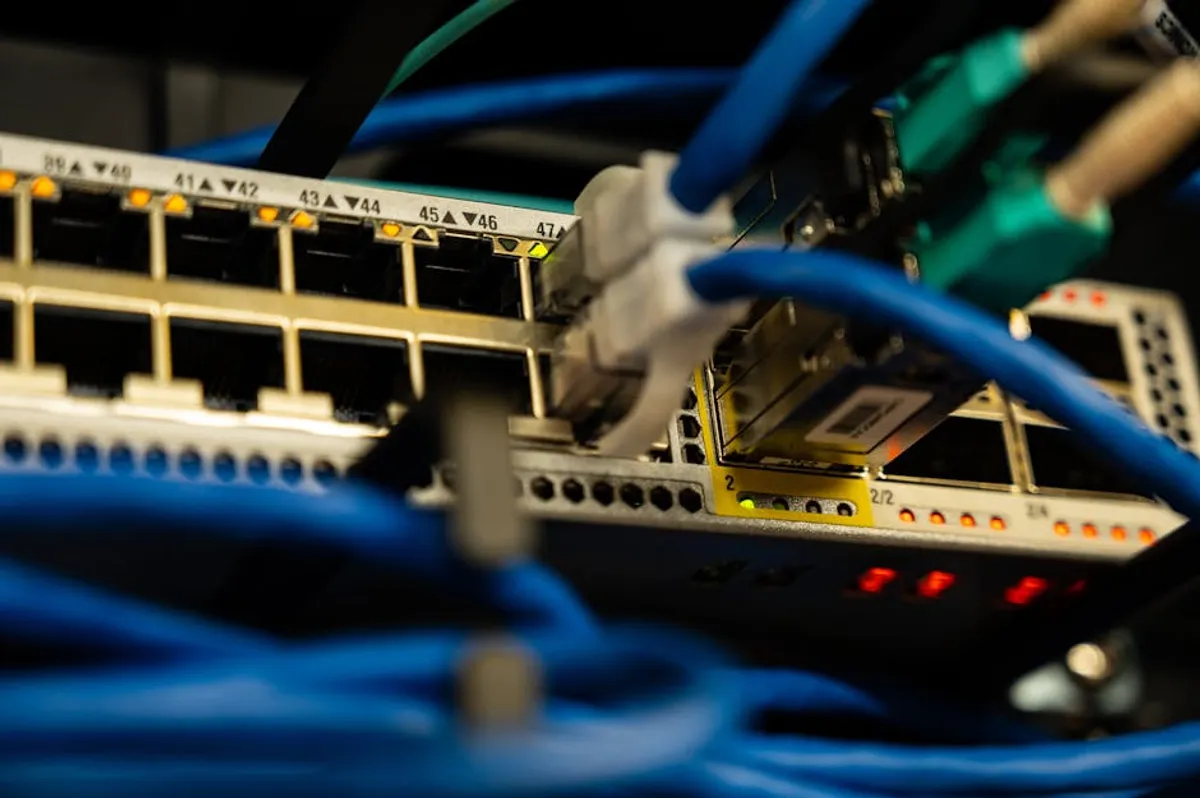
- Router Power and Indicator Lights: Confirm the router is powered on and its indicator lights are behaving as expected. A solid power light, active internet light, and blinking LAN/WLAN lights typically indicate normal operation. Consult your router's manual for specific light interpretations.
- Device Restart Sequence: Perform a full power cycle. First, unplug the router from its power source for at least 30 seconds, then plug it back in. Wait 2-3 minutes for it to fully boot up. Simultaneously, restart the device you are using to access the login page (computer, phone, tablet). This clears temporary caches and resolves minor software conflicts on both ends.
Browser and Network Configuration Troubleshooting
Once basic connectivity is established, the problem often shifts to how your device or browser interacts with the router's interface. These steps address common software and network setting conflicts.
Address Browser-Specific Issues
Your web browser can sometimes interfere with loading local IP addresses. Try these steps:
- Clear Browser Cache and Cookies: Accumulated browser data can corrupt the display of certain pages. Clear your browser's cache and cookies, then attempt to access the login page again.
- Disable Browser Extensions: Some browser extensions, particularly ad blockers or security tools, can block access to local IP addresses. Temporarily disable all extensions and retry.
- Use a Different Browser: If your primary browser fails, try an alternative browser (e.g., Chrome, Firefox, Edge, Safari). This isolates whether the issue is browser-specific.
- Incognito/Private Mode: Opening the login page in an incognito or private browsing window can bypass cached data and extensions without disabling them permanently.
Confirm Router's IP Address and Access Method
The router login page is accessed via its IP address, not a standard web domain. Incorrectly entering this address is a common error.
- Identify Default Gateway IP: The router's IP address is typically your network's default gateway.
- Windows: Open Command Prompt (type
cmdin Start search), then typeipconfigand press Enter. Look for "Default Gateway" under your active network adapter. - macOS: Go to System Settings > Network > Wi-Fi (or Ethernet) > Details > TCP/IP. The router's IP is listed as "Router."
- Linux: Open Terminal and type
ip r | grep default. The IP address will follow "default via."
Common default IPs include
192.168.1.1,192.168.0.1,192.168.2.1, or10.0.0.1. - Windows: Open Command Prompt (type
- Verify Protocol: Ensure you are using
http://orhttps://before the IP address in your browser's address bar, although most modern browsers will add it automatically. - Check for IP Conflicts: Occasionally, another device on your network might inadvertently be assigned the same IP address as your router, causing a conflict. Restarting all devices on the network can sometimes resolve this by forcing them to request new IP assignments.
Advanced Troubleshooting and Reset Options
If the above steps do not resolve the issue, the problem may lie deeper within the router's configuration or a more persistent software conflict on your device.
Firewall and Antivirus Interference
Security software on your computer can sometimes block local network access to protect against perceived threats. Temporarily disable your firewall and antivirus software, then attempt to access the router page. Remember to re-enable them immediately after testing to maintain security.
DHCP Server Status
Your router typically acts as a DHCP server, assigning IP addresses to devices. If the DHCP service is not running correctly, your device might not receive a valid IP address to communicate with the router. While you can't check this directly without accessing the router, ensuring your device's network settings are set to "Obtain IP address automatically" (DHCP) is crucial.
Warning: Router Reset
Performing a factory reset on your router will erase all custom configurations, including Wi-Fi names (SSID), passwords, port forwarding rules, and any other specific settings you have applied. You will need to reconfigure your network from scratch using the default login credentials, which are usually printed on a sticker on the router itself.
Factory Resetting the Router
As a last resort, a factory reset can resolve deep-seated software issues within the router. Locate the small "Reset" button, usually recessed to prevent accidental presses. Use a paperclip or similar pointed object to press and hold this button for 10-15 seconds while the router is powered on. Release the button and wait for the router to restart. After the reset, try accessing the login page using the router's default IP address and credentials.
Restoring Network Control
Successfully accessing your router's login page is the gateway to maintaining a secure and efficient home or office network. The process often involves a systematic approach, starting with physical checks and progressing through browser, network, and, if necessary, hardware resets. By methodically eliminating potential causes, you regain the ability to manage your network's critical settings, ensuring optimal performance and security. Always prioritize security by changing default login credentials immediately after a reset or initial setup.
Frequently Asked Questions
Why can't I access my router's login page even after restarting everything?
If basic restarts fail, the issue often points to an incorrect router IP address, browser cache corruption, or interference from security software (firewall/antivirus). Verify the router's default gateway IP using your operating system's network tools, clear your browser's cache, or try a different browser or device.
What are the default login credentials for a router?
Common default usernames are "admin" or "user," with common passwords being "admin," "password," "1234," or a blank field. These are usually printed on a sticker on the bottom or back of the router itself. If not found there, consult your router's manual or the manufacturer's website.
Is it safe to factory reset my router?
Yes, it is safe, but it will erase all your custom network settings. This includes your Wi-Fi name (SSID), password, and any custom configurations like port forwarding. You will need to reconfigure your network from scratch using the default settings after the reset.
My router login page loads, but my credentials don't work. What should I do?
If the page loads but credentials fail, you likely changed the default password and forgot it. The only way to regain access is to perform a factory reset on the router. This will revert the login credentials to their factory defaults, typically found on a sticker on the device.



