
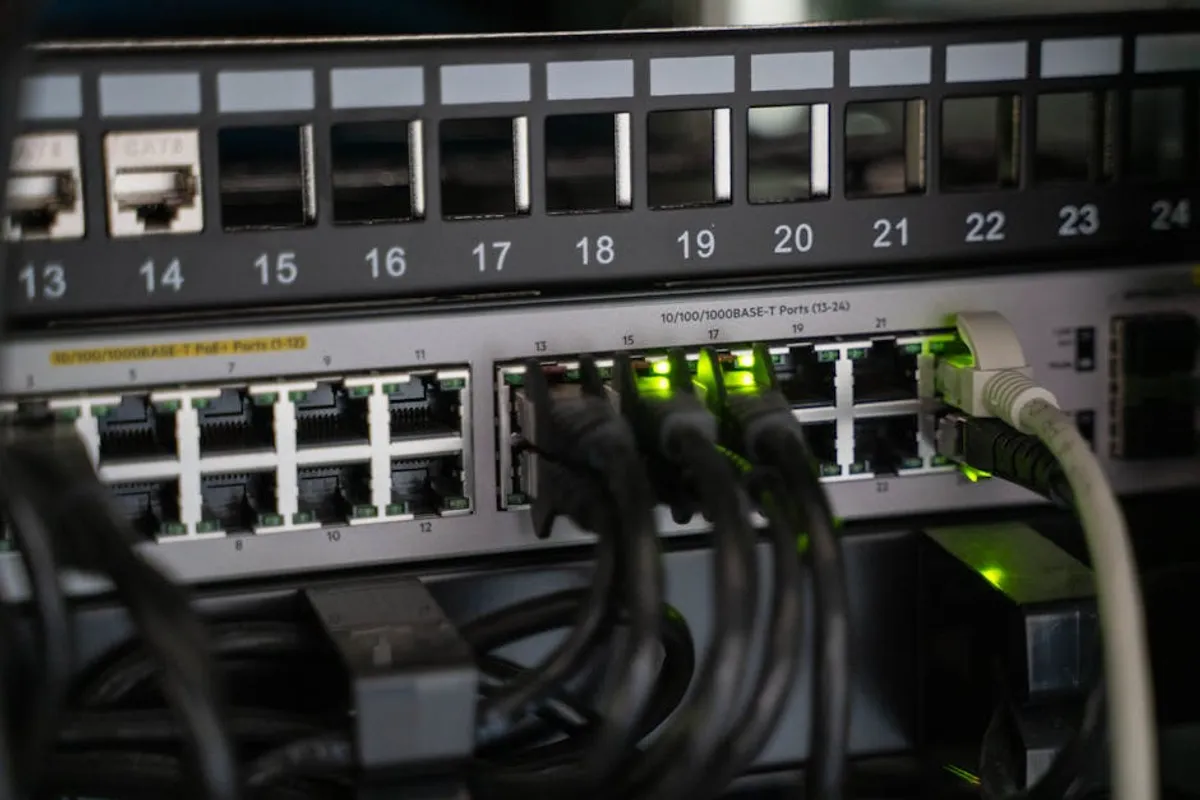
Router resets are not all equal. Understanding the distinction between a simple power cycle and a full factory reset is critical for effective network management and troubleshooting. This guide details both processes, outlining when each is appropriate and providing step-by-step instructions for resetting your router and reconfiguring it for optimal performance and security. Proper router management ensures consistent internet access, protects network integrity, and maintains data flow crucial for business operations and personal productivity.
Distinguishing Router Resets: Power Cycle vs. Factory Reset
A "reset" can refer to two distinct actions, each with different implications for your network configuration and data. Understanding which to perform prevents unnecessary setup time and potential data loss.
Power Cycling Your Router: The Soft Reset
A power cycle, often called a soft reset, involves simply turning your router off and then on again. This action clears its short-term memory (RAM), resolves temporary glitches, refreshes IP addresses, and can often restore connectivity or improve performance without altering any saved settings.
When to use:
- Intermittent internet connectivity drops.
- Slow network speeds without apparent cause.
- Devices failing to connect or obtain an IP address.
- After making minor network changes that require a refresh.
- As a first troubleshooting step for most network issues.
How to Perform a Power Cycle
This process is straightforward and typically takes less than two minutes.
- Unplug the power cable from the back of your router.
- Wait at least 30 seconds to allow all electrical charge to dissipate and the memory to clear completely.
- Plug the power cable back into the router.
- Allow 1-2 minutes for the router to fully boot up and re-establish its connection to your modem and the internet. Indicator lights (power, internet, Wi-Fi) should stabilize.
Factory Resetting Your Router: The Hard Reset
A factory reset, or hard reset, restores your router to its original, out-of-the-box settings. This action wipes all custom configurations, including Wi-Fi network names (SSID), passwords, port forwarding rules, static IP assignments, and administrative login credentials. It's a more drastic step, primarily used for significant issues or when preparing the device for new ownership.
When to use:
- Persistent network problems that power cycling doesn't resolve.
- Selling, donating, or discarding the router to erase personal data.
- Forgetting the administrative password and needing to regain access.
- Upgrading firmware that requires a clean slate.
- Experiencing severe network instability or suspected security breaches.
Essential Preparations Before a Factory Reset
Because a factory reset erases all custom settings, preparation is crucial to ensure a smooth re-setup process. Missing this step can lead to prolonged downtime or difficulty re-establishing your network.
Information to gather:
- ISP connection details: If your internet service provider (ISP) requires specific login credentials (e.g., PPPoE username/password) or VLAN IDs, have these readily available.
- Current Wi-Fi network name (SSID) and password: If you plan to use the same credentials, note them down. This avoids reconfiguring every connected device.
- Custom DNS servers: If you use specific DNS settings for security or performance, record them.
- Port forwarding rules: Any custom rules for gaming, servers, or specific applications will be lost. Document them for re-entry.
- Router's default login credentials: These are usually printed on a sticker on the router itself (e.g., "admin"/"password" or "admin"/"admin"). You'll need these to access the setup interface after the reset.
- Router's IP address: Typically 192.168.1.1 or 192.168.0.1. This is how you'll access the web interface.
Warning: Performing a factory reset without documenting your ISP login credentials or custom network settings will result in a non-functional internet connection until those details are correctly re-entered. Always confirm you have all necessary information before proceeding.
How to Perform a Factory Reset
The exact method can vary slightly by router model, but the general principle remains consistent.
- Locate the reset button on your router. This is often a small, recessed button that requires a paperclip or pen tip to press.
- With the router powered on, press and hold the reset button for 10-30 seconds. The exact duration may be specified in your router's manual; some models require holding until indicator lights flash or change color.
- Release the button. The router will restart, which can take several minutes.
- Once the router has fully booted, its indicator lights should stabilize, and it will be operating on its factory default settings.
Setting Up Your Router After a Factory Reset
After a factory reset, your router is essentially a new device, requiring initial configuration to connect to the internet and establish your Wi-Fi network.
1. Physical Connection and Initial Access
Connect your modem to the router's WAN/Internet port using an Ethernet cable. Then, connect a computer directly to one of the router's LAN ports with another Ethernet cable. Open a web browser and navigate to the router's default IP address (e.g., 192.168.1.1). Enter the default administrative username and password.
2. Running the Setup Wizard
Most modern routers feature a setup wizard that guides you through the essential configuration steps. Follow the on-screen prompts to:
- Change the default administrative password: This is a critical security step. Create a strong, unique password for router access.
- Configure internet connection type: Select your ISP's connection type (e.g., DHCP, PPPoE, Static IP) and enter any required credentials.
- Set up Wi-Fi network(s): Define your Wi-Fi network name (SSID) and create a strong, unique password for each band (2.4 GHz and 5 GHz). Choose WPA2-PSK (AES) or WPA3 for optimal security.
3. Advanced Configuration (Optional but Recommended)
Once basic connectivity is established, consider these further steps for enhanced network performance and security:
- Firmware update: Check for and install the latest firmware from the manufacturer's website. Firmware updates often include security patches and performance improvements.
- Guest network: Enable a separate guest Wi-Fi network to isolate visitors from your main network, enhancing security.
- Port forwarding: Re-enter any necessary port forwarding rules documented earlier.
- DNS settings: Reconfigure custom DNS servers if you use them.
- QoS (Quality of Service) settings: Prioritize traffic for critical applications or devices if your router supports it.
Maintaining Network Health and Security
Regular router maintenance extends beyond resets. Implementing a robust security posture and proactive management practices protects your network from vulnerabilities and ensures consistent performance.
- Regularly update firmware: Check for updates quarterly.
- Use strong, unique passwords: For both administrative access and Wi-Fi networks.
- Disable remote management: Unless absolutely necessary, keep remote access to your router's interface disabled.
- Review connected devices: Periodically check your router's interface for unfamiliar devices connected to your network.
- Consider WPA3 encryption: If your router and devices support it, WPA3 offers stronger encryption than WPA2.
Router Reset and Setup FAQs
What is the difference between restarting and resetting a router?
Restarting (power cycling) clears the router's temporary memory without changing settings, often resolving minor glitches. Resetting (factory reset) restores the router to its original factory defaults, wiping all custom configurations and requiring a full re-setup.
Will resetting my router improve internet speed?
A power cycle can sometimes improve speed by clearing temporary network congestion or refreshing IP leases. A factory reset might help if corrupted settings were causing performance issues, but it's not a guaranteed speed boost and requires full reconfiguration.
How often should I reset my router?
A power cycle can be beneficial once a month or whenever you experience minor connectivity issues. A factory reset should only be performed when necessary, such as for persistent problems, security reasons, or when preparing to sell the device, due to the configuration effort involved.
Do I need my ISP login details after a factory reset?
Yes, if your Internet Service Provider (ISP) uses a specific connection type like PPPoE that requires a username and password, you will need these details to reconnect to the internet after a factory reset. Always confirm these details before initiating a hard reset.



